 Elo
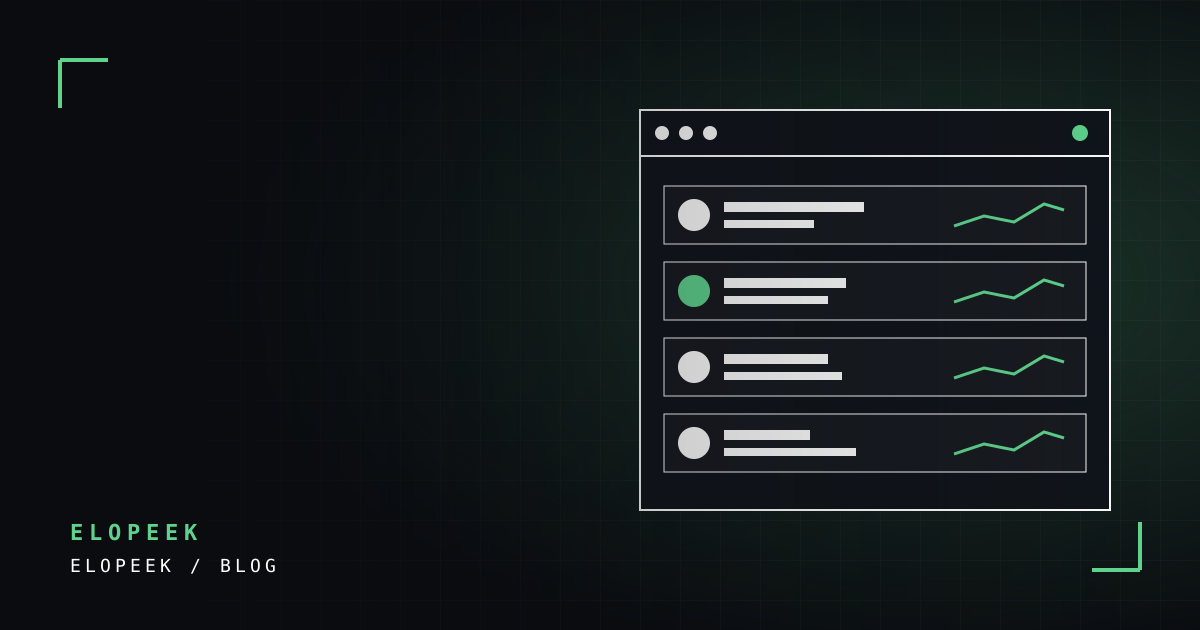
EloPeek is a free Chrome extension that adds player form, map performance and team comparison to the FACEIT match room. This guide walks you through everything from installation to your first match.
1. Install the extension
- Open the EloPeek page on the Chrome Web Store.
- Click Add to Chrome and confirm the dialog.
- Optionally pin the extension icon to your toolbar for one-click access to settings.
No account or API key is needed. The extension works as soon as it is installed.
2. Open a FACEIT match room
Queue on FACEIT as usual. When a match is found and the match room opens, EloPeek kicks in automatically. You don't need to refresh or press anything.
3. Read the player cards
Next to each player you will see:
- Win rate: win percentage over the last 20 matches.
- Average K/D and average kills: a summary of individual performance.
- Form graph: the direction of recent performance.
- Estimated role: a statistical estimate such as rifler, support or lurker.
Curious how to interpret these numbers? Read our guide to reading CS2 stats.
4. Check team comparison and map form
The middle of the match room shows both teams' last-20 win rate and average Elo side by side. During the veto you will also see each team's win rate per map and a reasoned ban suggestion.
5. Enable quick actions (optional)
Click the extension icon to open the settings panel, where you will find:
- Auto-accept match: accepts the match when the ready dialog appears.
- Auto-connect: clicks the connect button when the server is ready.
- Match room notification: shows a desktop notification when a new match room opens.
These features are off by default and only run when you turn them on.
6. Language
EloPeek supports Turkish, English, German, French, Spanish, Portuguese, Polish and Russian. You can switch language in the extension settings.
Having trouble?
- Nothing shows up: refresh the page once and make sure the extension is enabled in Chrome.
- No data for some players: very new or private profiles may not have enough match data.
- Something else: open a thread in the Support section of the community forum or reach us via the support page.